Create a demo Microsoft tenant
A demo Microsoft tenant stands in for a production tenant when you do not have one to connect. If you already have a production Microsoft tenant, skip this page; otherwise create the demo tenant at Microsoft Customer Digital Experiences.
To create a demo tenant:
-
Open the Microsoft Customer Digital Experiences portal.
-
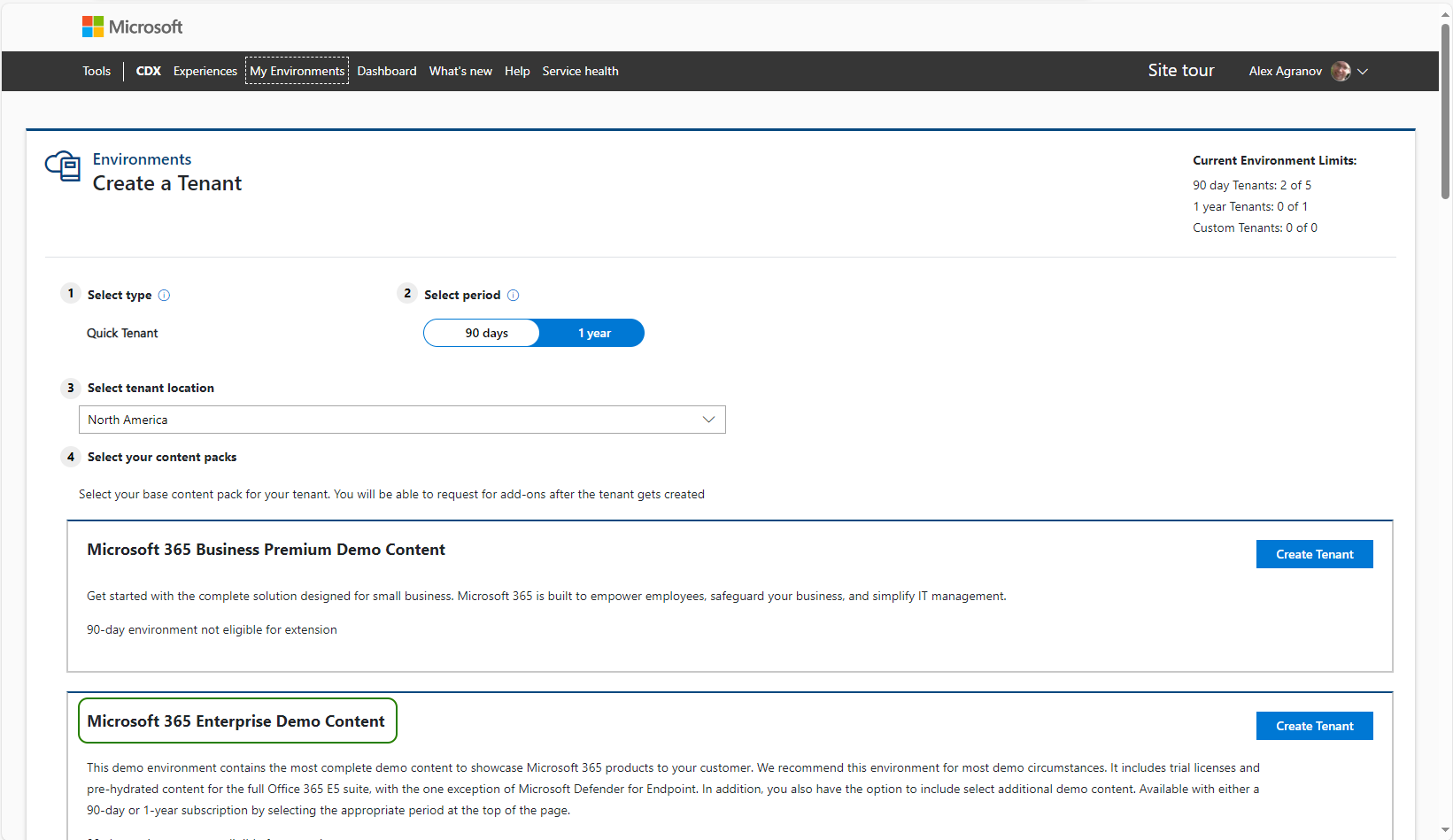
In the toolbar, select My Environments, and then click Create Tenant.
-
Under Select your content packs, select Microsoft 365 Enterprise Demo Content, and then click Create Tenant.
-
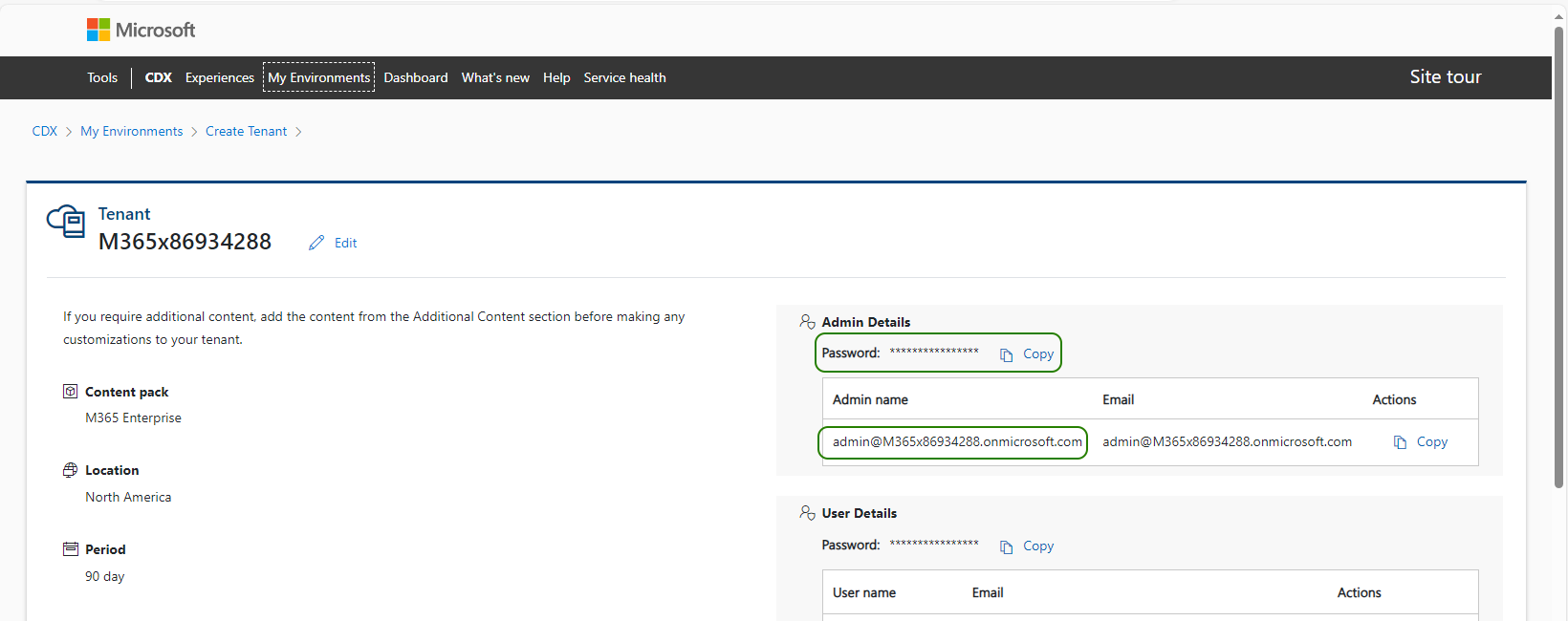
Write down the admin username and password. You need them to manage the tenant.
Free up a license
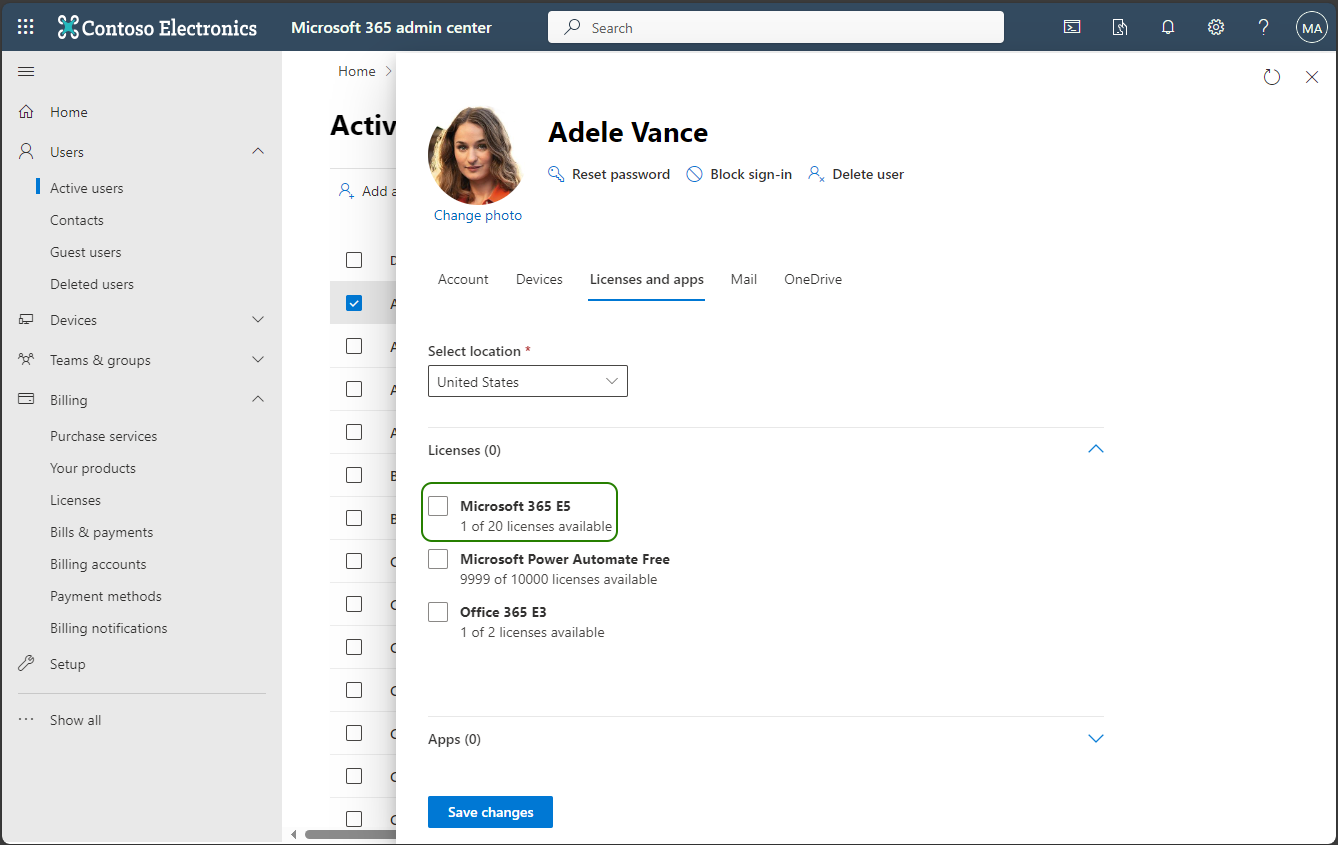
A new demo tenant normally has every eligible license already assigned to its demo users, which leaves none for Live Hub. Free one before you continue. See Verify license availability for what counts as eligible.
To free up a license:
-
Open the Microsoft 365 Admin Center, and then sign in with the demo tenant's admin username and password.
-
In the Navigation pane, select Users > Active Users.
-
Select a user holding an Office 365 E5 license.
-
From the More Actions menu, select Manage product licenses.
-
Clear the 'Office 365 E5' check box, and then click Save changes.